Generating Context
By creating memories, you build the foundation for detailed context that you can use in new AI conversations. Instead of relying on an AI's built-in memory (which you can't control), you decide exactly what information to share.
The Generate Context Button
You can generate context from anywhere in the app using the Generate Context button on the right side of the top header.

Creating Context
Click the button to open the context sidebar:
-
Select Memories - Choose which memory documents to include
- Use Select All to include everything
- Use Clear to deselect all memories
-
Title - Give your context a name (auto-generated if left empty)
-
Tags - Add tags to organize your contexts (auto-generated if left empty)
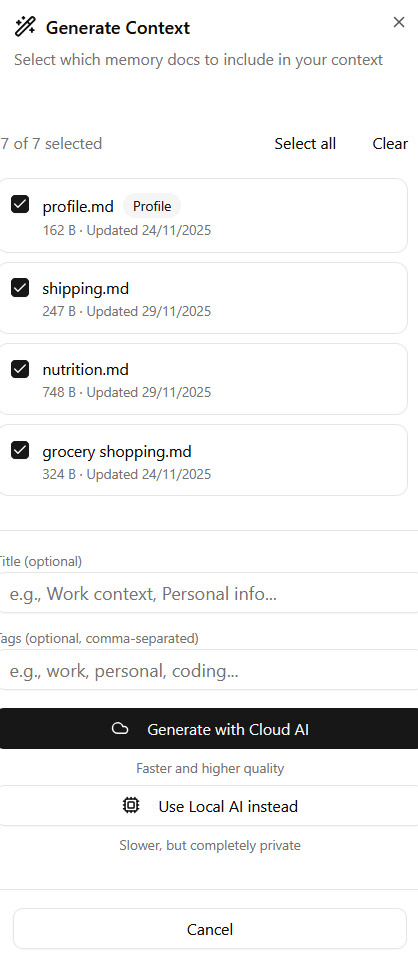
- Generate - Choose your AI:
- Cloud AI - Faster processing (Pro feature)
- Local AI - Private, runs on your device
First-Time Setup: Loading a Local Model
Important: If you're using Local AI for the first time, you'll need to load a model in Settings before generating context. See the Settings tutorial for details.
The Contexts Page
After generating, your context is saved and accessible from the Contexts page.
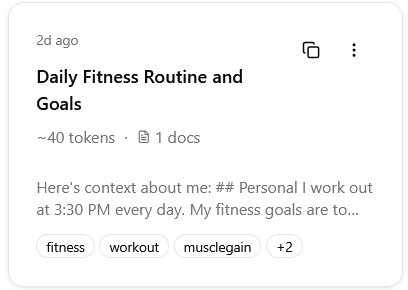
Each context card shows:
- Created - How long ago it was generated
- Title - The context name
- Size - Token count
- Sources - Number of memories it's based on
- Preview - A snippet of the context
- Tags - Organizational tags
Context Actions
Each card has action buttons:
- Copy - Copy the context to your clipboard (ready to paste into any AI chat)
- Delete - Remove the context
Creating Contexts Manually
Already have context you've written yourself? Click Create to add it manually:
- Use the block editor to write your content
- Add a title and optional tags
- Click Create to save
Click Cancel or click outside the sidebar to close without saving.
Viewing Context Details
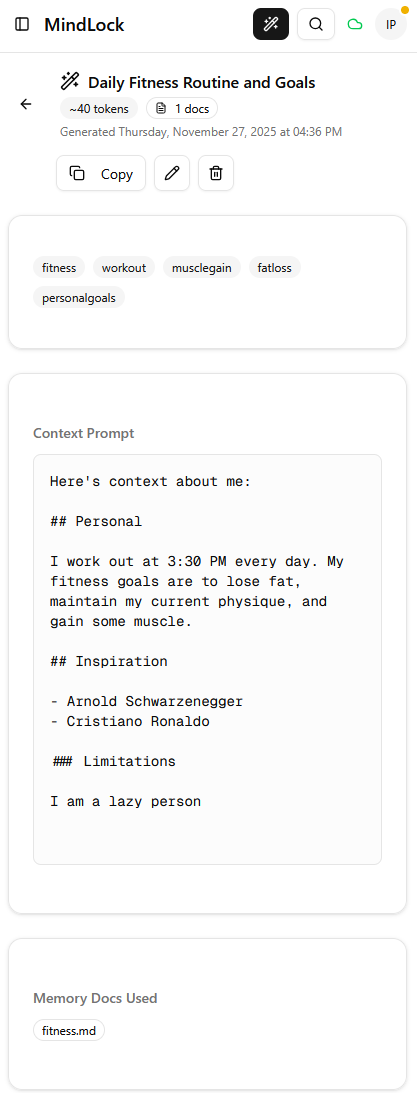
Click on a context to see its full content:
Header information:
- Title
- Token count
- Number of source memories
- Tags
- List of memory document names used
Actions:
- Copy - Copy to clipboard
- Edit - Modify the context (opens block editor, with Save/Cancel options)
- Delete - Remove the context
Content:
- The full generated context
Using Your Context
When you start a new conversation with ChatGPT, Claude, Gemini, or any AI:
- Click Copy on the context you want to use
- Paste it at the beginning of your conversation
- Add your question or request
The AI now has all the relevant background from your previous work, without you retyping anything.
Next Steps
Learn about managing old conversations in the Archives tutorial.