Settings
The Settings page lets you configure MindLock's behavior, manage AI models, and view your subscription details.
Go to Settings to access these options.
Local AI Model Selection
Choose which local AI model to use for distillation and context generation:
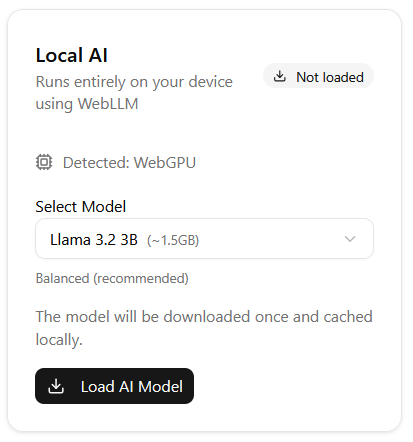
Available models (suited for different hardware):
| Model | Speed | Quality | Hardware |
|---|---|---|---|
| Fast | Fastest | Good | Lower-end GPUs |
| Balanced | Medium | Better | Mid-range GPUs |
| Quality | Slower | Best | High-end GPUs |
Select the model that matches your device's capabilities.
Loading a Model (First-Time Setup)
Important: Before using Local AI for the first time, you must load a model:
- Select your preferred model
- Click Load Model
- Wait for the download to complete (models are 1-2 GB)
Once loaded, the model stays on your device. You can use Local AI for distilling conversations and generating context without an internet connection.
If you prefer, you can skip this and use Cloud AI instead (available with Pro subscription).
Pro Subscription
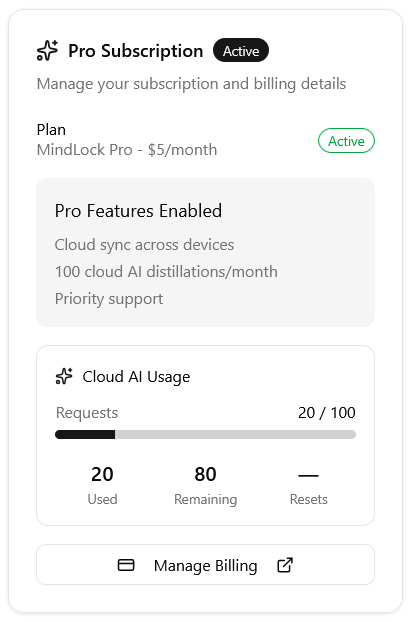
If you have a Pro subscription, you can view:
Usage
See how many cloud AI operations you've used this billing period.
Billing
Access your billing details and manage your subscription.
Storage
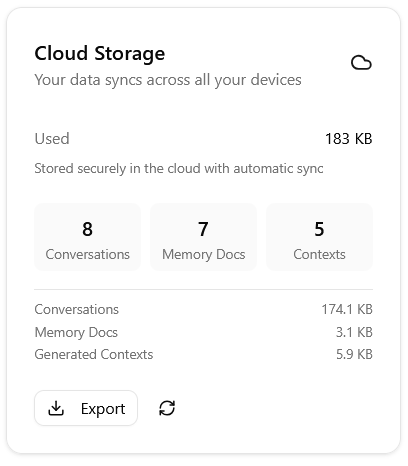
Check how much cloud storage you have available (Pro feature).
App Version
View the current version of MindLock.
Cloud AI vs Local AI
| Feature | Cloud AI (Pro) | Local AI (Free) |
|---|---|---|
| Speed | Fast | Slower |
| Quality | Higher | Good |
| Privacy | Encrypted | Complete |
| Internet | Required | Not required |
| Cost | €5/month | Free |
Recommendation:
- Use Cloud AI for faster results and better quality
- Use Local AI when privacy is paramount or you're offline
Need Help?
If you have questions or run into issues:
- Review the other tutorials in this guide
- Check the Dashboard for quick-start tips
- Contact support for additional assistance