✨ Core Features•2 min
Archives
When you archive a conversation, it moves to the Archives folder. This keeps your main Conversations page clean while preserving conversations you might need later.
Why Archive?
Archives work like a recycle bin:
- Declutter your main workspace without permanently deleting
- Preserve conversations you're not actively using
- Restore anything you need back to the main view
- Delete permanently when you're sure you don't need something
The Archives Page
Go to Archives to see all archived conversations.
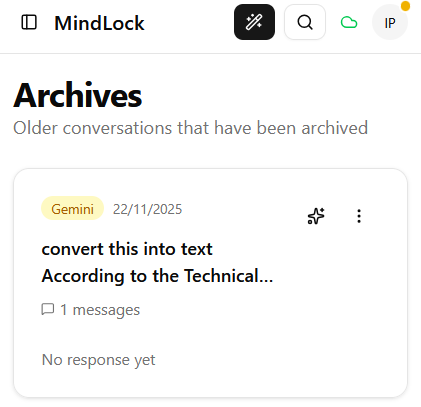
Archived conversations display the same way as the Conversations page:
- Source icon (ChatGPT, Claude, Gemini)
- Upload time
- Title
- Message count
- Preview snippet
Archive Actions
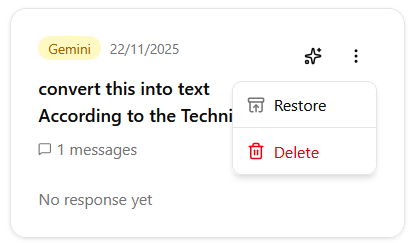
Each archived conversation has additional options:
- Restore - Move back to the Conversations page
- Delete - Permanently remove (cannot be undone)
Viewing Archived Conversations
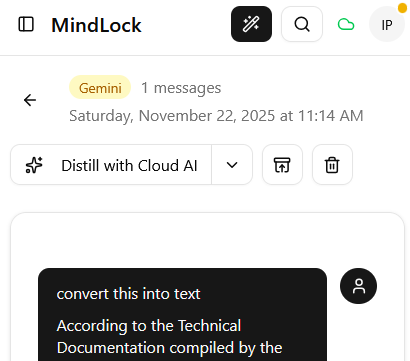
Click on an archived conversation to see its full details - the same view as regular conversations:
- Full chat history
- All messages and artifacts
- Header with title, origin, message count, and date
Actions in detail view:
- Back - Return to Archives
- Restore - Move back to Conversations
- Delete - Permanently remove
Archiving a Conversation
To archive a conversation:
- Go to Conversations
- Click the three dots menu on any conversation card
- Select Archive
Or from the conversation detail view:
- Open the conversation
- Click Archive in the header
The conversation moves to Archives immediately.
Next Steps
Learn how to configure MindLock in the Settings tutorial.