Importing Conversations
MindLock works with conversations exported from ChatGPT, Claude, and Gemini. The process is the same for all platforms.
Step 1: Export Your Conversation
Open the conversation you want to save in your browser and save the page:
- Windows/Linux: Press Ctrl + S
- Mac: Press Cmd + S
- Mobile: Use your browser's share menu and select "Save page" or "Download page"
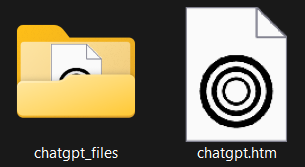
This will save two items to your computer:
- An HTML file - The page content (e.g.,
ChatGPT Conversation.html) - A folder with assets - Images, documents, and other files (e.g.,
ChatGPT Conversation_files/)
Step 2: Import into MindLock
- Go to the Conversations page
- Click the Import button in the header
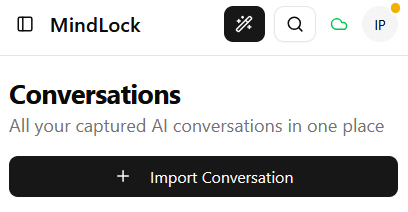
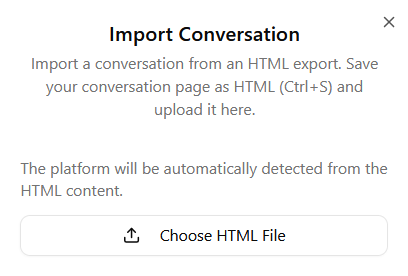
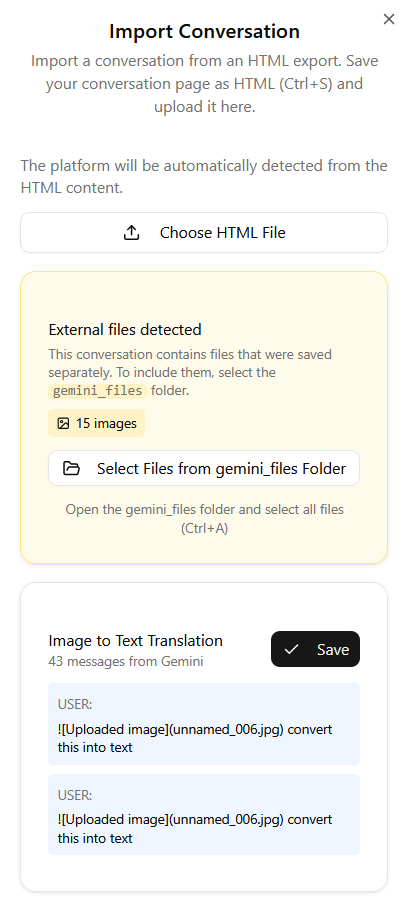
- This opens the import modal. Click to select your HTML file.
Step 3: Add Artifacts (Optional)
If your conversation contains artifacts (images, documents, code files), you can optionally upload them:
- Click "Select files from [conversation name] folder"
- Navigate to the folder that was saved alongside your HTML file (named
[conversation name]_files) - Select all files: Ctrl + A (Windows/Linux) or Cmd + A (Mac), then press Enter
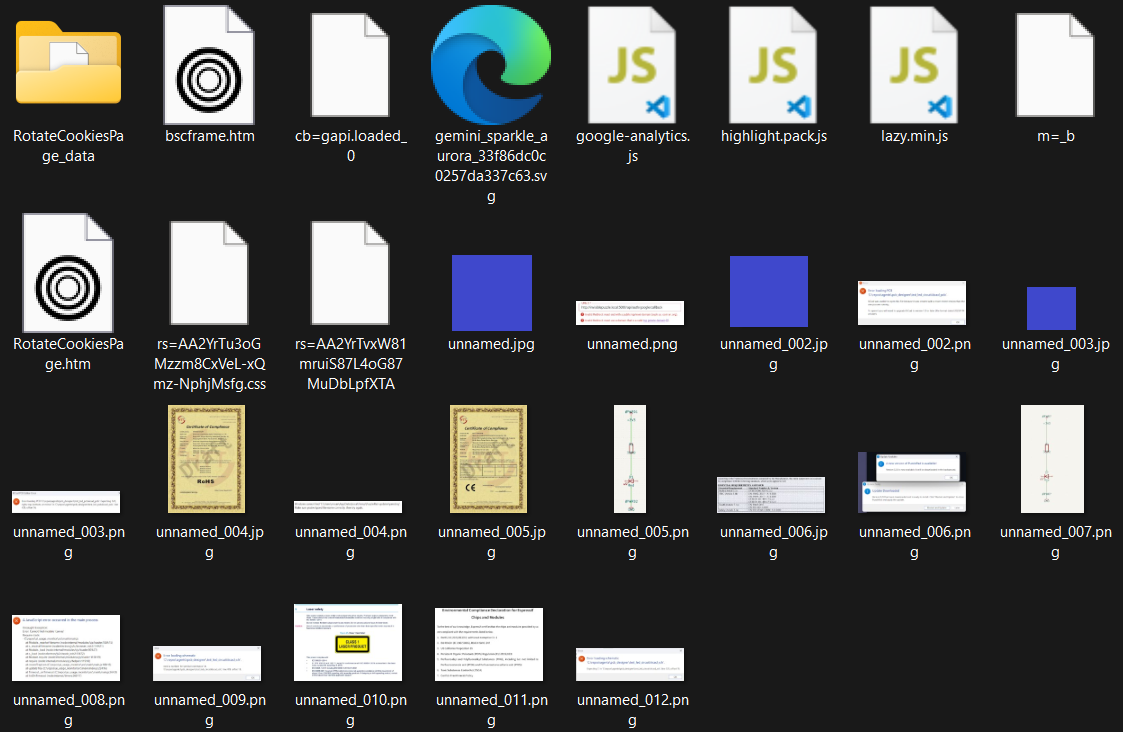
MindLock only keeps the files actually referenced in your conversation - we don't store unnecessary data.
The modal will indicate when all artifacts have been loaded.
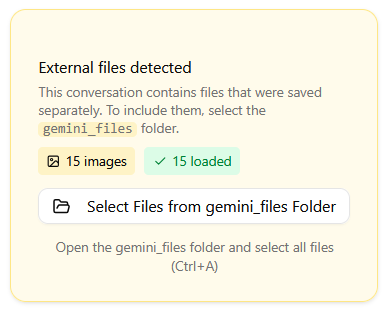
If you don't have artifacts or want to skip this step, simply proceed without selecting additional files.
Step 4: Save the Conversation
At the bottom of the modal, you'll see a preview of your conversation:
- Title
- Number of messages
- First 4 interactions between you and the AI
Click Save to import the conversation.
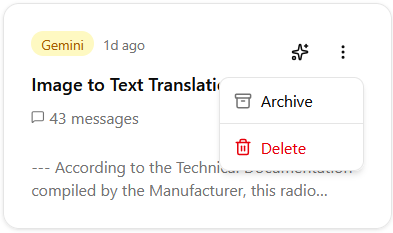
The Conversation Card
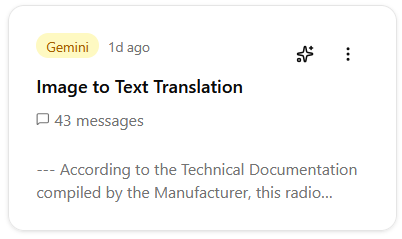
After importing, a card appears on the Conversations page showing:
- Source - ChatGPT, Claude, or Gemini icon
- Upload time - How long ago it was imported
- Title - The conversation title
- Message count - Number of messages
- Preview - A snippet of the conversation
Card Actions
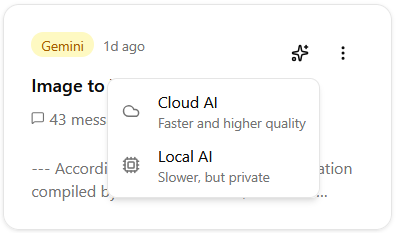
Each card has two action buttons:
Distill button (star icon) - Create memory documents from this conversation
- Cloud AI - Faster, better quality (Pro feature)
- Local AI - Slower but completely private, runs on your device
More options (three dots) - Additional actions
- Archive the conversation
- Delete the conversation
Viewing Conversation Details
Click on a conversation card to expand its full details:
- The entire conversation displayed in a familiar chat format
- All messages between you and the AI
- Artifacts you uploaded (images, documents) shown inline
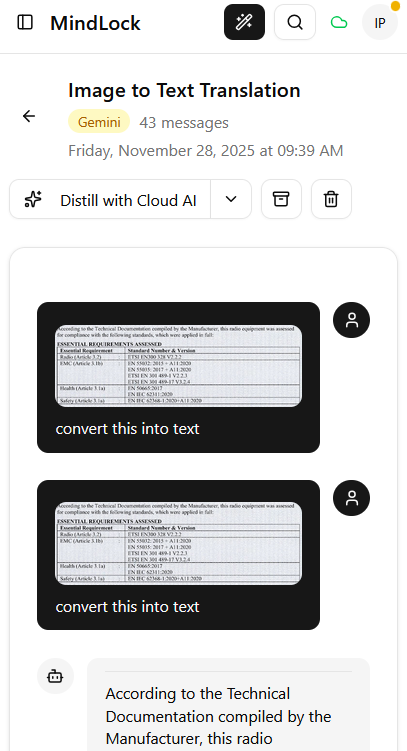
At the top of the detail view, you have:
- Title and origin (ChatGPT/Claude/Gemini)
- Message count and upload date
- Back button to return to conversations
- Distill button (Cloud AI or Local AI)
- Archive and Delete options
Next Steps
Now that your conversation is imported, learn how to create memory documents by distilling it.